sequenceDiagram
    actor Linus
    actor James
    actor Anne
    actor Claire
    actor Sandra
    actor John
    Linus ->> James: sha23
    Linus ->> Anne:  sha2
    Anne ->> Claire: sha2,sha5
    Sandra ->> Anne: sha7
    John ->> Sandra: sha6,sha3
    James ->> John: sha13
    Claire ->> James: sha2
    Claire ->> Sandra: sha14
    Sandra ->> Linus: sha1,sha15,sha3
    John ->> Linus: sha16
    Linus ->> Claire: sha15
    Claire ->> Linus: sha13
    Note over Linus: Releases version 2.16
Lesson 6: Github, Markdown, Branches, Quarto website
Claude
2024-11-20
Lesson 6
- GitHub (last time we made our first repo (unplanned), now we take a closer look)
- Markdown (or: how to write nice documents using text & Quarto)
- Branches (since even if you don’t use them, you do)
- Build a website (now the real fun starts)
Before we start
- Today’s slides are on GitHub
- Clone https://github.com/reinhrst/nitwit2gitwit branch
quarto - Create a RStudio project of this directory
- Render the presentation
GitHub: broad overview
For profit company (owned by Microsoft)
- “Centralised” repo – either private or public (open source)
- Very generous free tier, but probably your code can be used for AI training (claims only on public repos)
- Some tools to make git-stuff nicer (web based interface)
- Issue tracker
- Additional collaboration tools (code reviews / project boards / scrum boards)
- Markdown rendering
- Build & run “space”
- Web hosting for people/projects
- All integrated (links)
Decentralised repo
Centralised repo
sequenceDiagram
    participant repo
    autonumber
    actor Linus
    actor James
    actor Anne
    actor Sandra
    actor John
    Linus ->> repo: sha23
    Linus ->> repo:  sha2
    repo ->>+Anne: all changes
    repo ->>+Sandra: all changes
    Anne ->>-repo: sha2,sha5
    Sandra-->> repo: sha7 (fails)
    repo ->> Sandra: sha2,sha5
    Sandra ->>-repo: sha7
    repo ->>+John: all changes
    John ->>-repo: sha51,sha3
    repo ->> Linus: all changes
    Note over repo,Linus: Releases version 2.16
Github and centralised repo
Git is free software and everyone can (and could) set up a centralised repo server for free (if they have a server)
Github offers these kinds of repos “as a service” (GaaS)
Github made repos free for Open Source projects and private projects
Github added additional useful tools (like bug tracker)
These days most open source projects on Github (83%), some on GitLab (37%) and some others. Almost nobody self-hosted.
Centralised repo just special case of Decentralised repo
Centralised repo great, if it’s always up, and you have internet connection.
Even with centralised repo, decentralised workflow still works.
percentages were (possibly) made up by ChatGPT, please don’t quote :)
Github suggested git workflows
- “Conventions” on how to do things
- pull requests
- Basically request for your changes to be pulled into some branch(es)
- If you don’t have access
- By convention in some repos
- If you want someone to check you work
- Allows for code reviews
Project management
- Github issues: list of bugs / questions / wishlist / (what you want it to be). Iterative back and forth / status / link to commits.
- Code reviews: back and forth on changes before merge is done
- Project boards: Very flexible, a.o. scrum boards
- Often too limited for very large projects, but great in 99% of cases
Other tools
- Lot of code needs a build or Continuous Integration step (e.g. make HTML from Markdown, compile programs, run tests). Github provides (secure) server-space where scripts can be run automatically. Limited run-time for closed-source (non-public) projects, but probably enough.
- Everyone gets a webspace (
https://#USERNAME#.github.io/) that you can use for free (one per account). Afaik webspace per repo is a paid option. - All GitHub tools try to be integrated; so commit messages can link (or modify) to issues, links are made between different parts of the system.
Why use GitHub in single-person-projects
- Backup
- Great if you (occasionally) work on multiple computers
- Issues (yes also for 1 person)
- Automatic builds / tests (but this is advanced)
- Maybe in the future you want to share / collaborate
- “muscle memory”
Markdown (.md)
- Markdown is a language that allows you to write (readable) plain text documents, which render to text with layouts
- Headers / bold / italic / links / images
- Depending on flavour / plugins:
- Tables, Code highlighting / rendering / diagrams (e.g. Mermaid), Smilies, Math \(e^{i\pi}+1=0\)
- By default (mainly) used for web documents (websites), but some flavours for presentations, books, etc
- Alternatives: Asciidoc, RTF, LateX, Typst.
- This whole presentation is in Markdown
- If all people working on a paper support Markdown, this would be the best way (probably)
- Github renders markdown in
.mdfiles (henceReadme.md), and in issues / code reviews / etc.
Quarto (.qmd)
- Quarto uses Markdown as a base, and adds batteries
- Automatic rendering to websites, presentations (on web, PDF, PowerPoint), text (Word, PDF, Typst), books/papers/manuscripts, dashboards
- Built-in support in RStudio (developed by the people behind RStudio), but independent of R
- “Successor” to R-Markdown (
.rmd) - Can work in projects (Markdown is single file)
- Execute code and add to output
- Lots of documentation and examples
- Downside: Github will not render it anymore, so less suited for Readme.md.
- This whole presentation is in Quarto
- If all people working on a paper support Markdown, this would be the best way (probably)
Markdown examples
This is bold and italic. This is a link.
- A list
- Is simply made
Note
Note that a single newline does not start a new paragraph in Markdown. It’s best (for git) to write every sentence on its own line when writing Markdown.
Two newlines do start a new paragraph.
Exercise: move the “note” above into a single paragraph on your local presentation.
Quarto show-off
pie title NETFLIX
         "Time spent looking for movie" : 90
         "Time spent watching it" : 10
Exercise: change the above statistics
# Load necessary library
library(ggplot2)

# Original data for 2023 and 2024
data <- data.frame(
  Year = c(2023, 2024),
  Students = c(2, 8),
  LineType = "Actual" # Label actual data
)

# Extrapolate data for 2025-2027
extrapolated_years <- data.frame(
  Year = 2024:2027,
  Students = 8 * 4^(0:3), # Each year gets 4 times the students of the previous year
  LineType = "Projected" # Label extrapolated data
)

# Combine original and extrapolated data
full_data <- rbind(data, extrapolated_years)

# Create the plot
ggplot(full_data, aes(x = Year, y = Students)) +
  geom_line(aes(linetype = LineType), size = 1, color = "blue") +  # Different line types for actual vs. projected
  geom_point(size = 3, color = "red") +                           # Points for all data
  labs(
    title = "Nitwit2Gitwit Course Popularity",                   # Title
    x = "Years",                                                 # X-axis label
    y = "Number of Students"                                     # Y-axis label
  ) +
  scale_linetype_manual(values = c("Actual" = "solid", "Projected" = "dotted")) + # Line styles
  theme_minimal() +
  scale_y_continuous(labels = scales::comma)                     # Format Y-axis with commas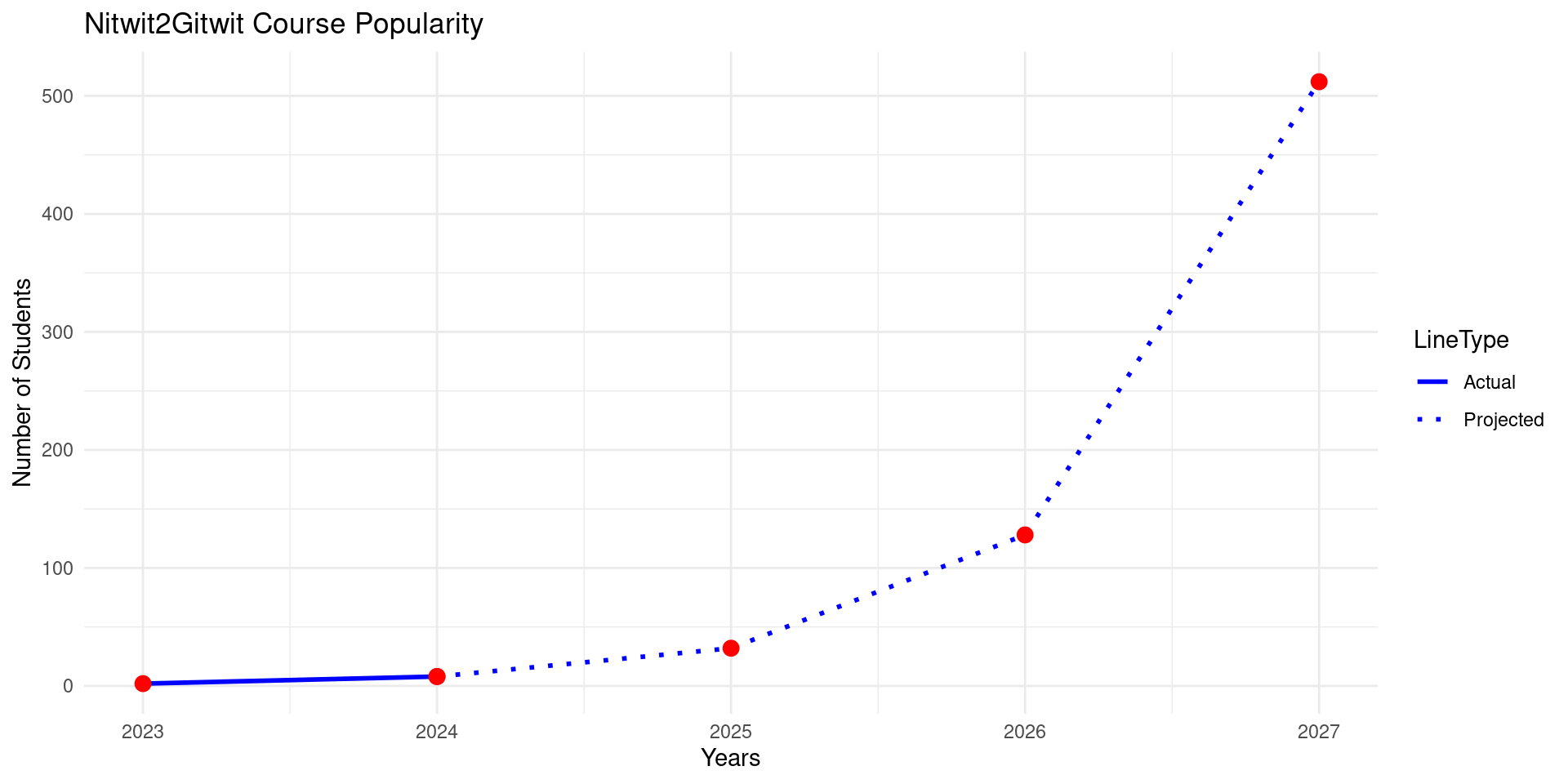
Exercise: Make my outlook less rosy :)
Branches
gitGraph
  commit
  commit
  branch quarto
  checkout main
  commit
  checkout quarto
  commit
Why branches
- Explicit branches (with the goal of):
- Merged into another branch
- Replace the original branch
- Another “view” of the project (e.g. an anonymized version of
behave) - An experiment that gets abandoned
- …
- Implicit branches (Branches in git are everywhere so merging is too)
- local branches
- remote repositories
- forking
- pull requests
- Branching is super easy.
- Merging is easy-ish (most of the time)
- Merge conflicts are scary but usually also easy
A merge-conflict happens when changes somehow overlap
Branches cheatsheet
Git branches cheat sheet
| command | description |
|---|---|
git checkout COMMITREF |
Checkout an existing commitref (can be branch) |
git checkout -b BRANCH |
Create a new branch BRANCH and check it out |
git branch |
List all (local) branches |
git branch --all |
List all branches (local and remote) |
git branch --delete BRANCH |
Delete branch BRANCH if it’s all merged |
git branch --delete --force BRANCH |
Delete branch BRANCH even if not fully merged |
git branch -d/-D BRANCH |
-d == --delete; -D == --delete --force |
Note
git checkout BRANCH normally checks out a branch (meaning: this is the branch that you are now working on). If you have local changes (in the index or the working directory), these are rebased on the new branch. This means that the diff between the old branch and the changes is made, and that is applied to the new branch. If this leads to a conflict, checkout will fail and tells you to manually clean up your files.
A note on deleting branches
- Remember that a branch-name is only a pointer to a certain commit
- Deleting a branch only deletes the branch-name (pointer)
- The commits may be referred to by another branch-name, a tag, or another commit
- Every now and then,
gitprunes orphaned commits (but not directly)
gitGraph
  commit
  commit
  branch quarto
  checkout main
  commit
  checkout quarto
  commit
  branch my-small-test
  commit
gitGraph
  commit
  commit
  branch quarto
  checkout main
  commit
  checkout quarto
  commit
  commit tag: "v2.0-beta"
gitGraph
  commit
  commit
  branch quarto
  checkout main
  commit
  checkout quarto
  commit
  checkout main
  merge quarto
Merging (recombining)
| command | description |
|---|---|
git merge BRANCH |
Make the current branch contain all changes of the other branch as well |
git cherry-pick REVISION |
Apply the changes in REVISION to the current branch |
git rebase BRANCH |
Unattach current branch from LCA-point, and reattach at BRANCH |
gitGraph
    commit id: "1"
    branch A
    checkout main
    commit id: "M1"
    commit id: "M2"
    checkout A
    commit id: "A1"
    commit id: "A2"
    checkout main
    commit id: "M3"
When you merge branch A into branch main it means:
- At the end,
mainshould have all the changes in branchA(in addition to what it already had)
Merge methods
- (manually – no git; sometimes if change is simple (or super complex))
- merge-commit
- rebase / fast-forward
- squash
Manual merge
gitGraph
    commit id: "1"
    branch A
    checkout main
    commit id: "M1"
    commit id: "M2"
    checkout A
    commit id: "A1"
    commit id: "A2"
    checkout main
    commit id: "M3"
gitGraph
    commit id: "1"
    commit id: "M1"
    commit id: "M2"
    commit id: "M3"
    commit id: "A1&2 manually"
In some complex merge situations, manual merge is the only (practical) solution
merge-commit
gitGraph
    commit id: "1"
    branch A
    checkout main
    commit id: "M1"
    commit id: "M2"
    checkout A
    commit id: "A1"
    commit id: "A2"
    checkout main
    commit id: "M3"
gitGraph
    commit id: "1"
    branch A
    checkout main
    commit id: "M1"
    commit id: "M2"
    checkout A
    commit id: "A1"
    commit id: "A2"
    checkout main
    commit id: "M3"
    merge A tag:"merge-commit"
A merge-commit has 2 (or more) parents, and may contain extra “diffs” to indicate how to resolve merge-conflicts.
Rebase & fast-forward
gitGraph
    commit id: "1"
    branch A
    checkout main
    commit id: "M1"
    commit id: "M2"
    checkout A
    commit id: "A1"
    commit id: "A2"
    checkout main
    commit id: "M3"
In rebase (we rebase A to main) we first move the base (LCA) of branch A to the tip of main (note that A1 and A2 will need to change (at least their parent). Note that “committer” or “commit date” are not changed.
gitGraph
    commit id: "1"
    checkout main
    commit id: "M1"
    commit id: "M2"
    commit id: "M3"
    branch A
    commit id: "A1*"
    commit id: "A2*"
Then we “fast-forward” main (basically no commits are changed, just the main label is moved).
gitGraph
    commit id: "1"
    commit id: "M1"
    commit id: "M2"
    commit id: "M3"
    commit id: "A1*"
    commit id: "A2*"
squash-merge
gitGraph
    commit id: "1"
    branch A
    checkout main
    commit id: "M1"
    commit id: "M2"
    checkout A
    commit id: "A1"
    commit id: "A2"
    checkout main
    commit id: "M3"
Squash
gitGraph
    commit id: "1"
    branch A
    checkout main
    commit id: "M1"
    commit id: "M2"
    checkout A
    commit id: "A1&2"
    checkout main
    commit id: "M3"
(continued on next slide…)
Rebase
gitGraph
    commit id: "1"
    checkout main
    commit id: "M1"
    commit id: "M2"
    commit id: "M3"
    branch A
    commit id: "A1&2*"
Now just fast-forward
gitGraph
    commit id: "1"
    commit id: "M1"
    commit id: "M2"
    commit id: "M3"
    commit id: "A1&2*"
Notes about merges
- In the diagrams we pretend the branch disappears after merge; this is a manual operation (and not always what you want)
- Git merge always tries to do it’s best to not create conflicts, but if it does, you will have to manually fix them
- Rebase may result in rebase conflicts (which are more or less the same)
- avoid conflicts by not checking in more than you want (remember
git diff --cachedbefore commit)!!!!
Differences in strategies
Each strategy has its advantages and disadvantages; what you want to use depends on personal preference.
| mergecommit | rebase/ff | squash | manual | |
|---|---|---|---|---|
| nr commits in main | 1 (merge) | multiple | 1 (squashed) | 1 (manual) |
| main is in chronological order | yes | no | ??? | ??? |
| history | split (complex) | straight | straight | straight |
| original commits available | yes | yes | no | no |
| original blame available | yes | yes | no | no |
| branch visible in history | yes | no | no | no |
| branch is rewriten | no | yes | yes | ??? |
When in doubt (but this is personal preference):
- merge commit for branch merges
- rebase for
pull - squash if you made lots of small commits that are not interesting to anyone
Playtime: Make Quarto Website
We’re going the play around a bit. We do this in a Quarto Website in RStudio (but things would be equally valid in other editors / other code). We will use the commandline for all git stuff. You may certainly do this same exercise again later using the built-in tools in RStudio.
Step 1
Create a new project “Recipes” in RStudio, Quarto Website. Check the box “Create a git repository”.
Note
We could initialize the git repository in the commandline interface as well using git init. However RStudio also populates .gitignore for us. Let’s quickly look at this file to see what RStudio put in there for us.
Step 2
- Press “Render” and see that you have a website (it might need to install some stuff).
- In Rstudio, click “render on save”.
- Change the title of the website in
_quarto.yamland save. See the result. - Change
index.qmdto a nice welcome page: “Welcome to Claude’s kitchen” (or what you want). If you feel brave, add an image, save and check. - Change
about.qmdand write 2 lines about the website, and add some bullet points. Then save and check. - Click the “Source” button to see the actual file content (Markdown).
Now that we have something, let’s commit a first version (using the cli). Make sure no files that should not get checked in are checked in!
Also let’s cat the about.qmd file, just to make sure it’s text.
Note
In the documentation Quarto seems to suggest that the file extensions should be .Qdm, but by default they are .qmd. Personally I don’t like using capitals in extensions, but both seem to work equally well.
Step 3
- Add three pages to the website for some recipes (
applepie.qmd,mojito.qmd,cheese-fondue.qmd); go to “File -> New File -> Quarto Document”, then save it with the right file name. Copy-paste some recipe into each of them (doesn’t have to be the right one, but three different ones). Note that you may have to click “refresh” on your files-overview. - Create links to the recipes on the
index.qmd: (Using: “Insert -> Link” andappliepie.qmdas file name, or[Aplepie](applepie.qmd)in Markdown). NOTE: intensionally make a typo in one of the link texts (not the filename to which you link). - Save, check, and commit.
Step 4
- Create a branch
layout-experiments - Create a branch
vegan - Create a branch
typos - In
mainwe make one more recipe (be creative). Commit - In branch
layout-experiments, experiment with a new theme (see https://quarto.org/docs/output-formats/html-themes.html, change in_quarto.yml, you will have to manually press “Render” again to check) and commit. - In branch
layout-experiments, add a emoji to each link onindex.qdmand commit - In branch
vegan, change your recipes to be vegan and commit - In branch
typos, fix the typo that I made you make in step 3 (if you did not, just imagine there is a typo and “fix” it).
Step 5
We have this, time to merge
gitGraph
  commit
  commit
  branch layout-experiments
  branch vegan
  branch typos
  checkout main
  commit
  checkout layout-experiments
  commit
  commit
  checkout vegan
  commit
  checkout typos
  commit
- Merge
veganintomain. Feel free to delete theveganbranch afterwards.
Step 6
gitGraph
  commit
  commit
  branch layout-experiments
  branch vegan
  branch typos
  checkout main
  commit
  checkout layout-experiments
  commit
  commit
  checkout vegan
  commit
  checkout typos
  commit
  checkout main
  merge vegan
- Merge
layout-experimentsintomain. Feel free to delete the branch afterwards.
Step 7
gitGraph
  commit
  commit
  branch layout-experiments
  branch vegan
  branch typos
  checkout main
  commit
  checkout layout-experiments
  commit
  commit
  checkout vegan
  commit
  checkout typos
  commit
  checkout main
  merge vegan
  merge layout-experiments
- Merge
typosintomain. This will fail. Usegit statusto check which files are the problem, and manually fix these files. Then add the file and commit (see next page).
$ git merge typos
Auto-merging index.qmd
CONFLICT (content): Merge conflict in index.qmd
Automatic merge failed; fix conflicts and then commit the result.
# There is a conflict because the same line was edited in multiple revisions.
$ git status
On branch main
You have unmerged paths.
  (fix conflicts and run "git commit")
  (use "git merge --abort" to abort the merge)

Unmerged paths:
  (use "git add <file>..." to mark resolution)
    both modified:   index.qmd

no changes added to commit (use "git add" and/or "git commit -a")
# Manually edit `index.qmd`. Note that RStudio is actually smart enough to detect the conflict markers and offer you the markdown version to fix the error. Fix it and save the correct version.

$ git add index.qmd
$ git commit
[main 1ff5925] Merge branch 'typos'
# Note that `git commit` already has "Merge branch `typos`" filled in as commit message. It remembered that it was doing that.
Done
gitGraph
  commit
  commit
  branch layout-experiments
  branch vegan
  branch typos
  checkout main
  commit
  checkout layout-experiments
  commit
  commit
  checkout vegan
  commit
  checkout typos
  commit
  checkout main
  merge vegan
  merge layout-experiments
  merge typos
Working with remote repository
Each local git project has 0 or more remotes. The default name for a remote is origin, but you can add more.
You can list the remotes using git remote (add -v for more info).
Each branch on the remote is a branch locally (e.g. remotes/origin/main). This is because your local main may be different from what the remote has, or may even be called differently locally.
You should never work directly with the remote branches.
git branch lists all branches, as -a for remote branches too.
Cheatsheet
| command | description |
|---|---|
git fetch |
Updates the remotes/origin/* branches. Does not update local branches |
git rebase remotes/origin/main |
Rebases your main branch on the remote branch. This means that remotes/origin/main is now an ancestor of your local main. In normal operations, you will never use this command. |
git pull |
does a git fetch and a git rebase remotes/.../... for the branch that your local branch is tracking (means: is connected to). This is the command you will normally use. Note that you might be asked to fix merge conflicts. |
git push |
push new commits on local branch to the remote location. This only work if remote branch is an ancestor of the local branch. |
| command | description |
|---|---|
git push -f |
push new commits on local branch to the remote location, regardless of whether it’s an ancestor. |
Warning
Never do a push -f unless you are sure what you are doing. Doing so is one of the few ways how you can destroy the history on GitHub, making everyone angry (in the best case). push -f is almost never the solution, unless you want to destroy history and have lots of backups in case you fuck up.